
EPUB reading guide
How to Open EPUB Files on Windows, Mac, and Android
An EPUB file is meant for a reading app, not for a browser download shelf or a generic archive utility. The fastest route is to choose one reader for the device in front of you, import the file there, and inspect a chapter that has enough headings, paragraphs, and navigation to reveal a bad conversion.
Direct answer
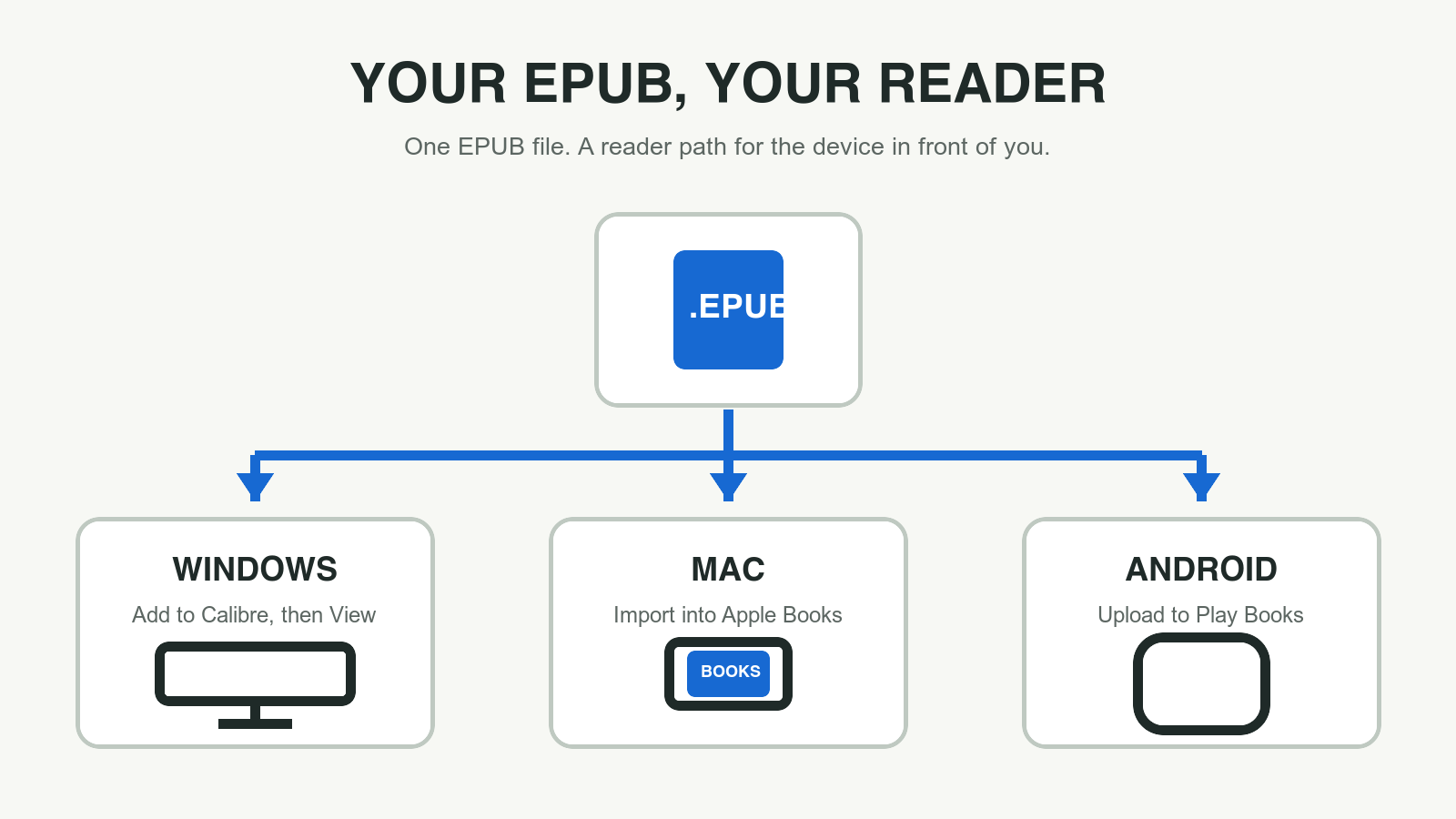
To open an EPUB file, use an EPUB-capable reader: Calibre on Windows, Apple Books on Mac, or Google Play Books on Android are straightforward starting paths. Import the .epub file into the reader rather than renaming or unzipping it, then check the table of contents, a long paragraph, and a late chapter before treating the file as ready.
Start with a reading system, not a file trick
EPUB is a packaged digital-publication format. The W3C specification describes it as structured web content bundled for distribution, with a reading system responsible for presenting the publication. In normal use, that means the .epub file should be handed to an app built to render chapters, navigation, styles, and reflowed text.
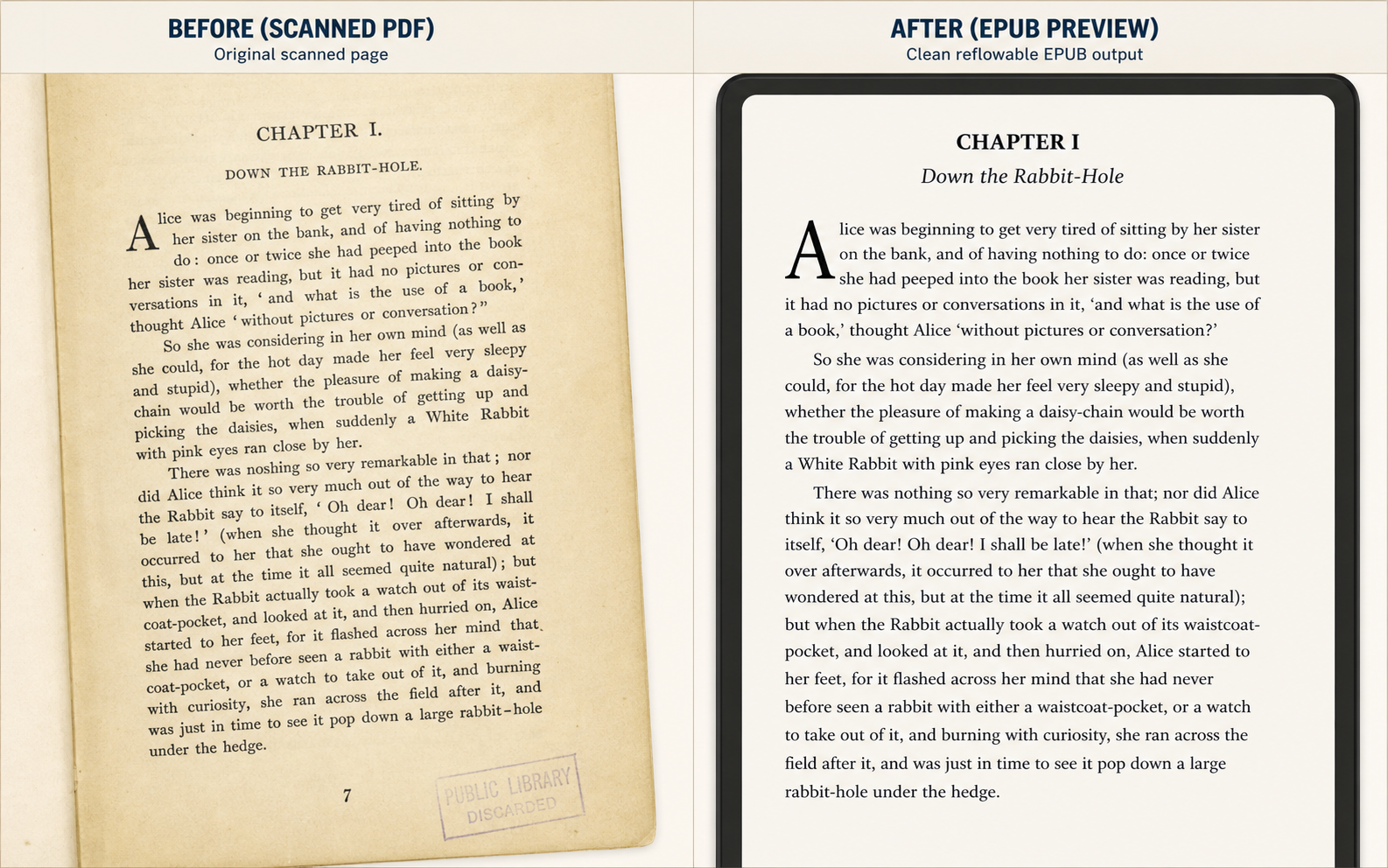
That distinction matters after PDF conversion. A PDF can preserve a fixed page, while a typical EPUB rearranges text for the reader's screen. If an EPUB opens but a heading is detached from its paragraph, or a navigation item lands in the wrong place, the reader has exposed a conversion problem. It has not made the original PDF wrong.
Do not rename an EPUB to .zip or try to read the files inside it as a workaround. EPUB is ZIP-based internally, but the useful experience is the reader's: chapter order, metadata, typography controls, bookmarks, and a table of contents. Treat the archive structure as a diagnostic detail, not the normal way to consume a book.
- Keep the original .epub extension.
- Use an app that explicitly supports ebook reading.
- Open a real chapter before deciding that conversion quality is acceptable.
Choose the shortest path for the device you use
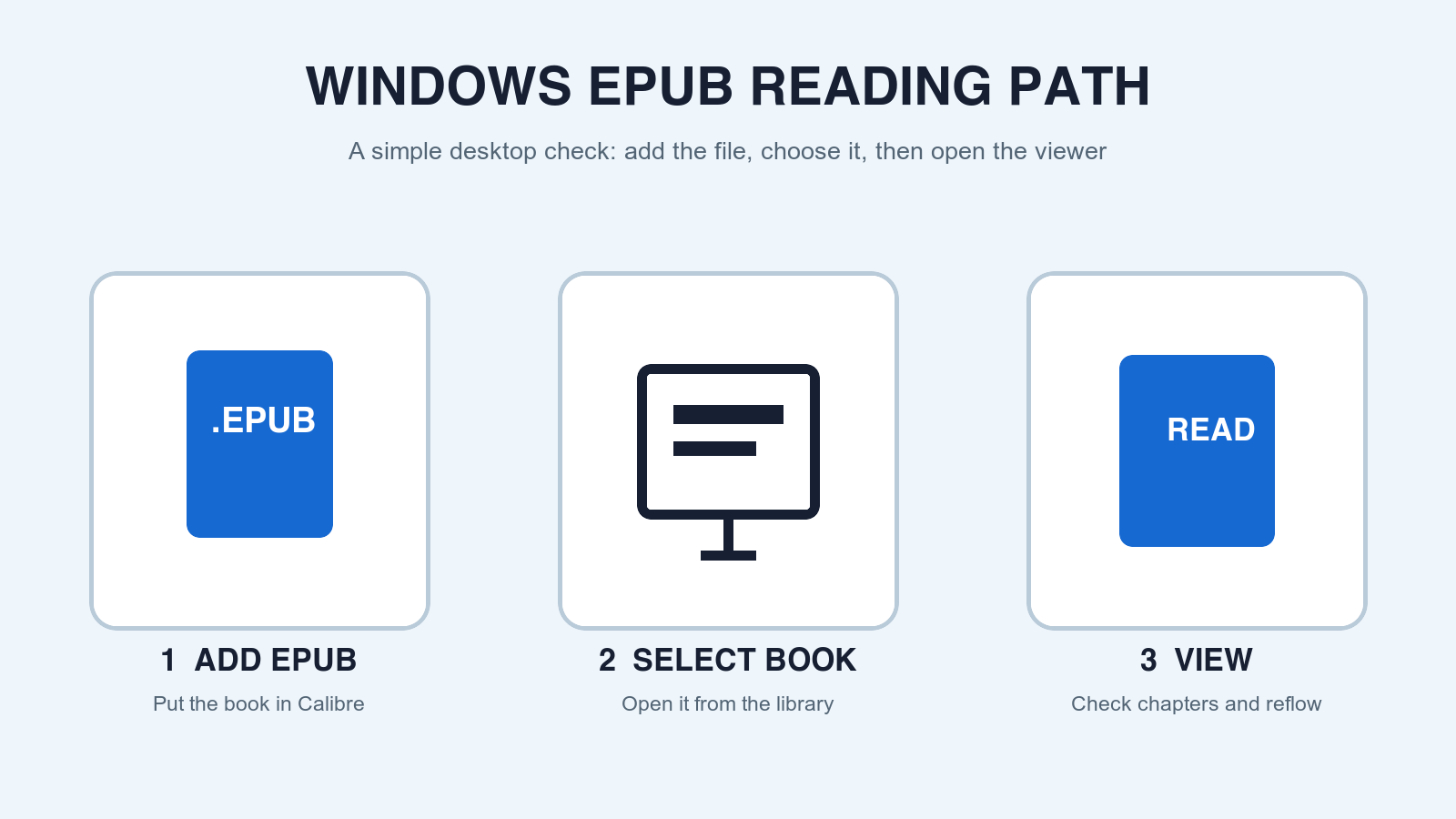
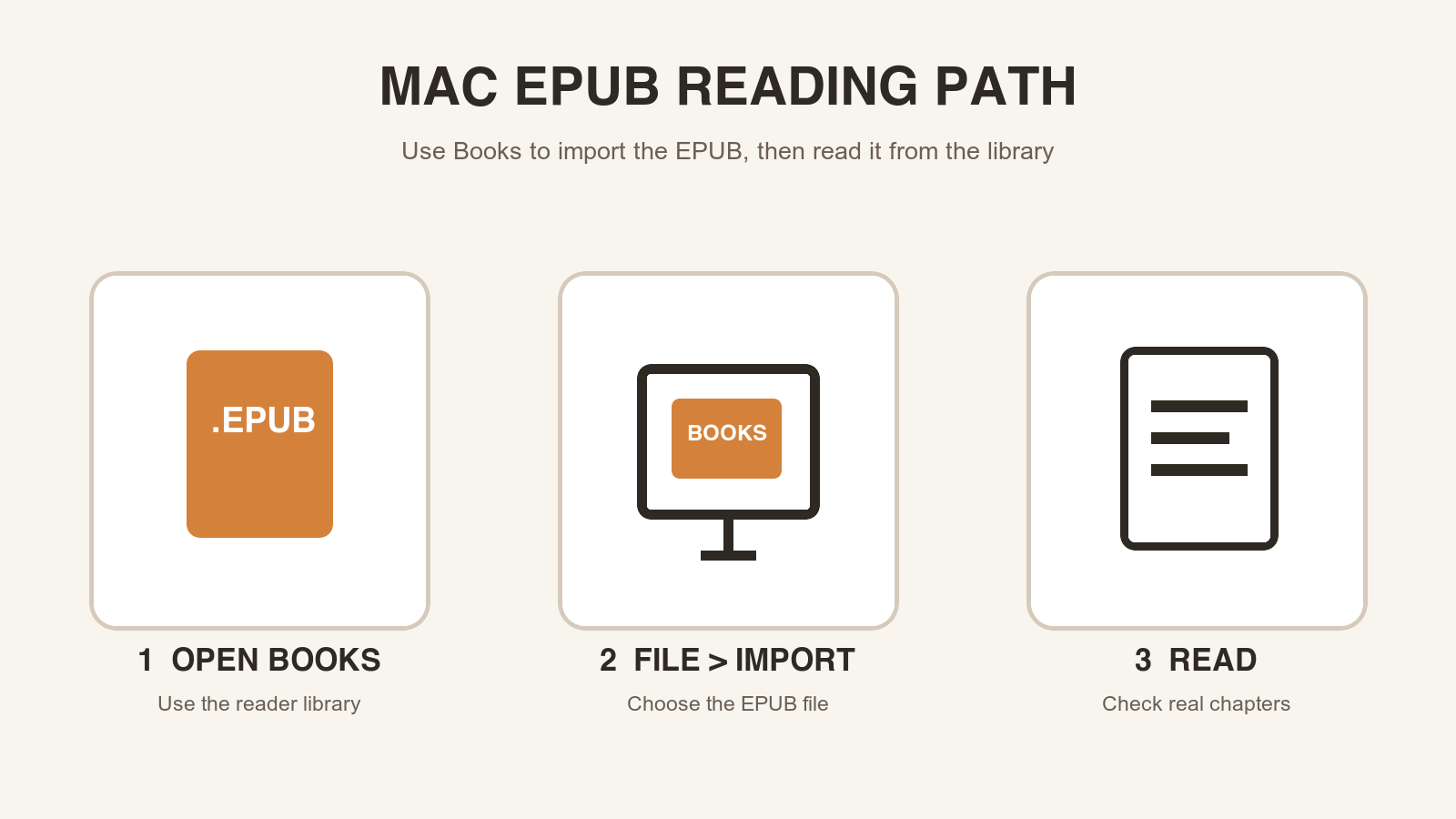
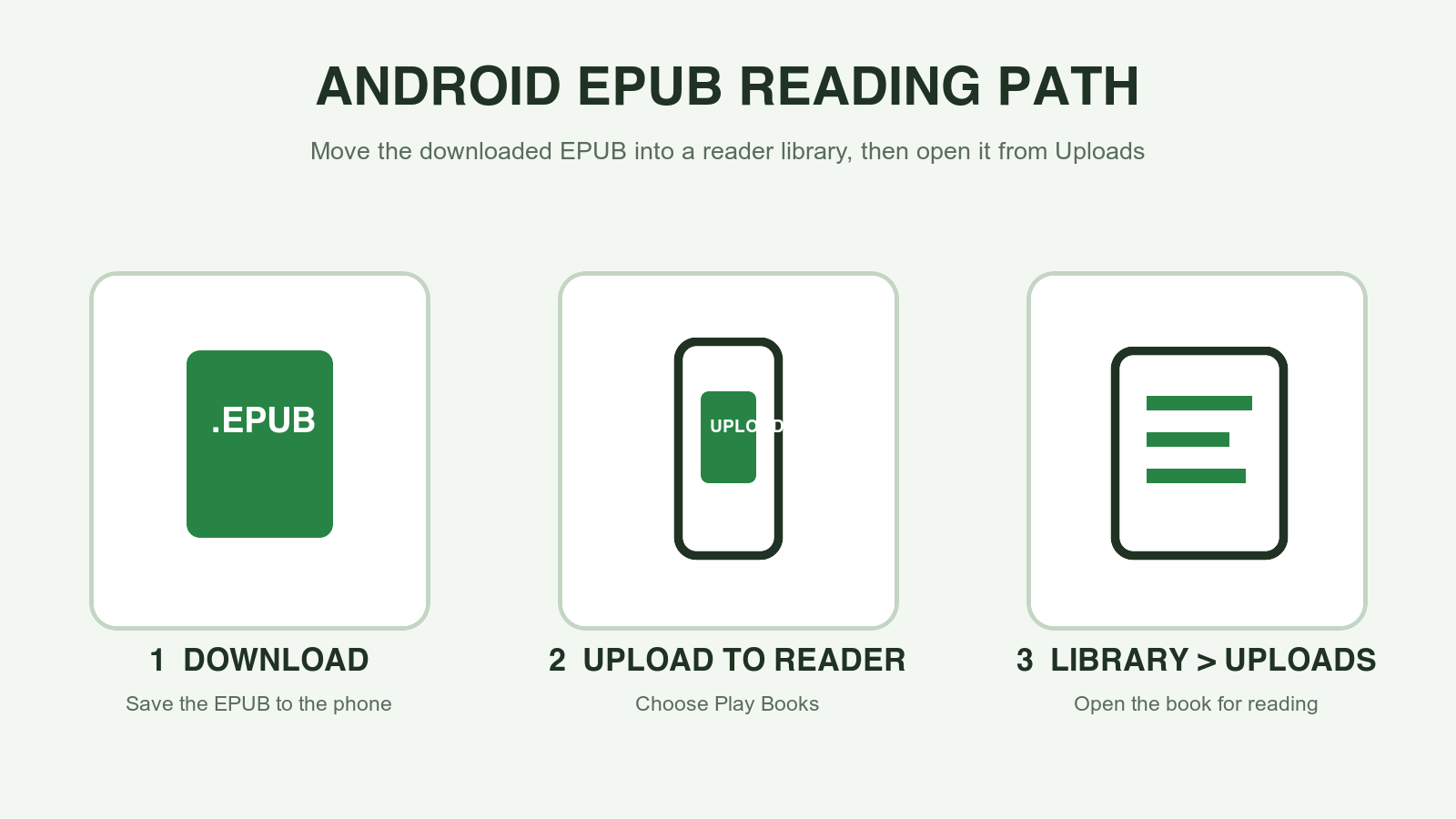
The right guide is determined by the device, not by the source of the book. Windows readers are commonly organized around a desktop library. On a Mac, the shortest built-in-style path is importing into Apple Books. On Android, Google Play Books can accept personal EPUB files from the Files app or from an email attachment.
These are deliberately separate guides because the intent is separate. A Windows searcher needs a desktop workflow and a visible reader window. A Mac searcher needs the Books import command. An Android searcher needs a phone-friendly way to send the downloaded file into the reading app. One broad list of reader names is less useful than the actual first action for each platform.
Check the book, not just whether an icon appears
A file listed in a library is only the first checkpoint. Open the first chapter, then jump to a chapter later in the book. This catches a common false positive: the cover and title look fine, but the generated navigation, long paragraphs, image placement, or section order needs repair.
For a PDF you converted yourself, use the same sample that you reviewed before downloading. Compare a heading, a page with an image, and a dense paragraph against the EPUB. A clean one-column source should read naturally. A scan, two-column academic paper, or table-heavy document may need a different decision: repair the source, keep the PDF for reference, or limit the EPUB to the text-first sections.
This is why a preview-first conversion workflow belongs before reader selection. The reader tells you what the finished book feels like; the preview tells you whether the source is a good candidate for reflow before you spend time moving it between devices.
- Open the table of contents and follow a link to a later chapter.
- Read a long paragraph at your normal font size.
- Inspect one page that combines an image, caption, footnote, or table.
- Keep the PDF when fixed layout is part of the meaning.
Use the platform guide instead of guessing at sharing
The same file can be read on more than one device, but getting it into each reader is a separate task. Do not assume that a desktop library automatically places a personal EPUB into a phone app, or that a file visible in Downloads is already in the reading library. Follow the native import path for the device that will actually be used for reading.
For Mac, Apple documents importing many EPUB books through Books. For Android, Google documents uploading personal EPUB files to Play Books from Files or Gmail. Those official paths are preferable to generic advice such as changing extensions, loading an unknown browser extension, or trying to force a PDF viewer to behave like an ebook reader.
When an EPUB will not open, identify the mismatch first
An EPUB-looking download is not always a normal, readable EPUB. A partial download, a file with a different extension, or a store or library handoff file may need a different app or a fresh download. Apple's Books documentation, for example, distinguishes many EPUB books from ACSM, AZW, and ODM files that must be opened by their associated third-party app.
Start with the smallest reversible check: look at the file name and extension, download it again if the transfer was interrupted, then import it through the reader's own command. If it still fails, do not keep changing file names. Go back to the place that supplied the book, or validate that the PDF-to-EPUB conversion finished with an actual EPUB download.
Official sources
Reader behavior verified against publisher documentation
App interfaces can change. These direct sources are kept here so the reader path can be checked against the current product documentation.
-
EPUB 3.3
W3C
Defines EPUB as a packaged digital-publication format and explains the role of reading systems.
-
The E-book viewer
Calibre
Documents Calibre's built-in ebook viewer and its Windows launch and library workflow.
-
Import books, audiobooks, or PDFs in Books on Mac
Apple Support
Documents importing many EPUB books through File > Import or drag and drop.
-
Upload PDF and EPUB files to your library
Google Play Help
Documents uploading a personal EPUB from Files or Gmail into Google Play Books.
Before you move the file
Preview the PDF-to-EPUB result first.
Inspect the first pages for OCR, headings, images, page-number leaks, and reading-order risk before downloading an EPUB to this reader.
Questions
FAQ
Can I open an EPUB file in a web browser?
A dedicated EPUB reader is the more reliable choice. It is designed to handle chapters, navigation, reflow, font settings, and bookmarks rather than treating the file as a download or archive.
Why does my EPUB open but look wrong?
Opening proves only that a reader recognized the package. Check chapter order, the table of contents, long paragraphs, and pages with images or tables. Problems there usually point to the source PDF or conversion quality, not to the act of opening the file.
What is the easiest way to read an EPUB on a phone?
On Android, Google Play Books documents uploading a personal EPUB from Files or Gmail and then opening it from the Uploads area of the library. Use the platform-specific import path rather than leaving the file only in Downloads.
Should I keep the original PDF after converting it to EPUB?
Yes. Keep the PDF as the layout-faithful reference, especially for tables, forms, page-specific citations, or complex fixed-layout material. Use the EPUB when the priority is comfortable reflowed reading.