
EPUB reader for Windows
How to Read EPUB Files on Windows with Calibre
For a Windows user, the problem is usually not finding a browser trick. It is getting the EPUB into a reader that can display it as a book. Calibre is a direct starting point because its documentation describes a built-in ebook viewer and a library workflow: add the book, select it, and open it with View.
Direct answer
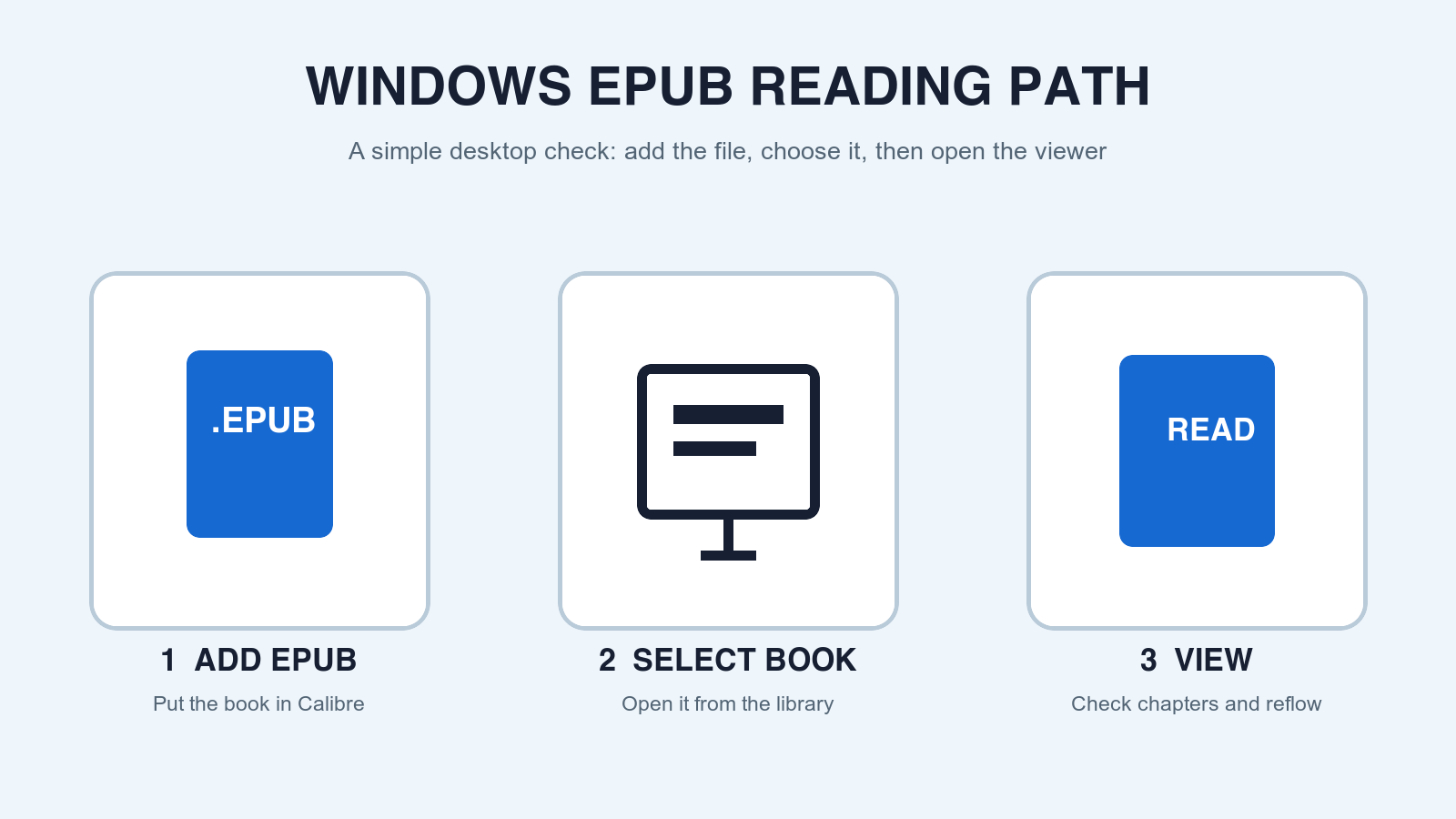
To read an EPUB on Windows, add the .epub file to Calibre, select the book in the library, and choose View. Then use the viewer to open the table of contents and a later chapter. If the book opens but paragraphs, headings, or images are wrong, inspect the PDF-to-EPUB conversion rather than repeatedly changing the reader.
Use a reader that treats the file as a book
Windows does not need an EPUB conversion just to begin reading an existing EPUB. It needs a reader. Calibre's official viewer manual says that Calibre includes a built-in ebook viewer for the major ebook formats, and it describes the basic library action: select a book and press View.
That library-and-viewer split is useful for PDF-to-EPUB work. The library gives the file a stable place, while the viewer gives you a real reading surface with navigation, search, font controls, and bookmarks. A file that merely appears in a folder has not passed that test yet.
Avoid judging the EPUB from the cover alone. A generated title and cover can look correct even when a late chapter has wrong reading order. Use Calibre as a reader check: open the book, navigate, and read enough continuous text to discover whether reflow is doing the job you wanted.
Open an EPUB in Calibre in three deliberate steps
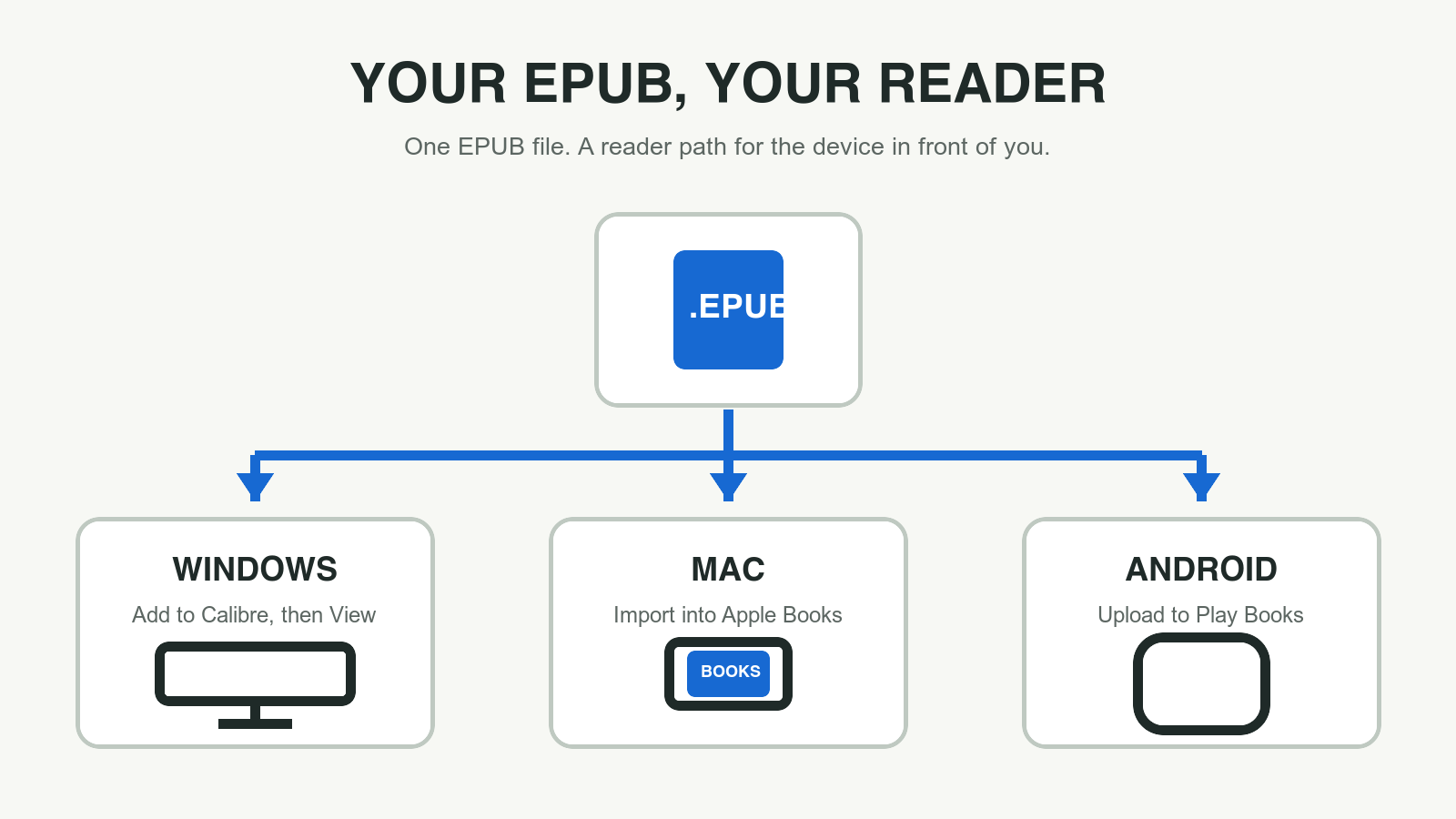
Start with the downloaded .epub file, not with an extracted folder. Open Calibre and add the book to its library. Once the book is visible, select it and use the View control. Calibre's manual also notes that the viewer can be launched from the Windows Start menu, but the library route is clearer when you have just downloaded or converted a specific file.
The first read should be short but intentional. Open the table of contents, jump to a chapter beyond the opening pages, and return using a navigation link if the book has one. This checks more than whether Windows recognized the extension. It checks that the EPUB's internal structure is usable for reading.
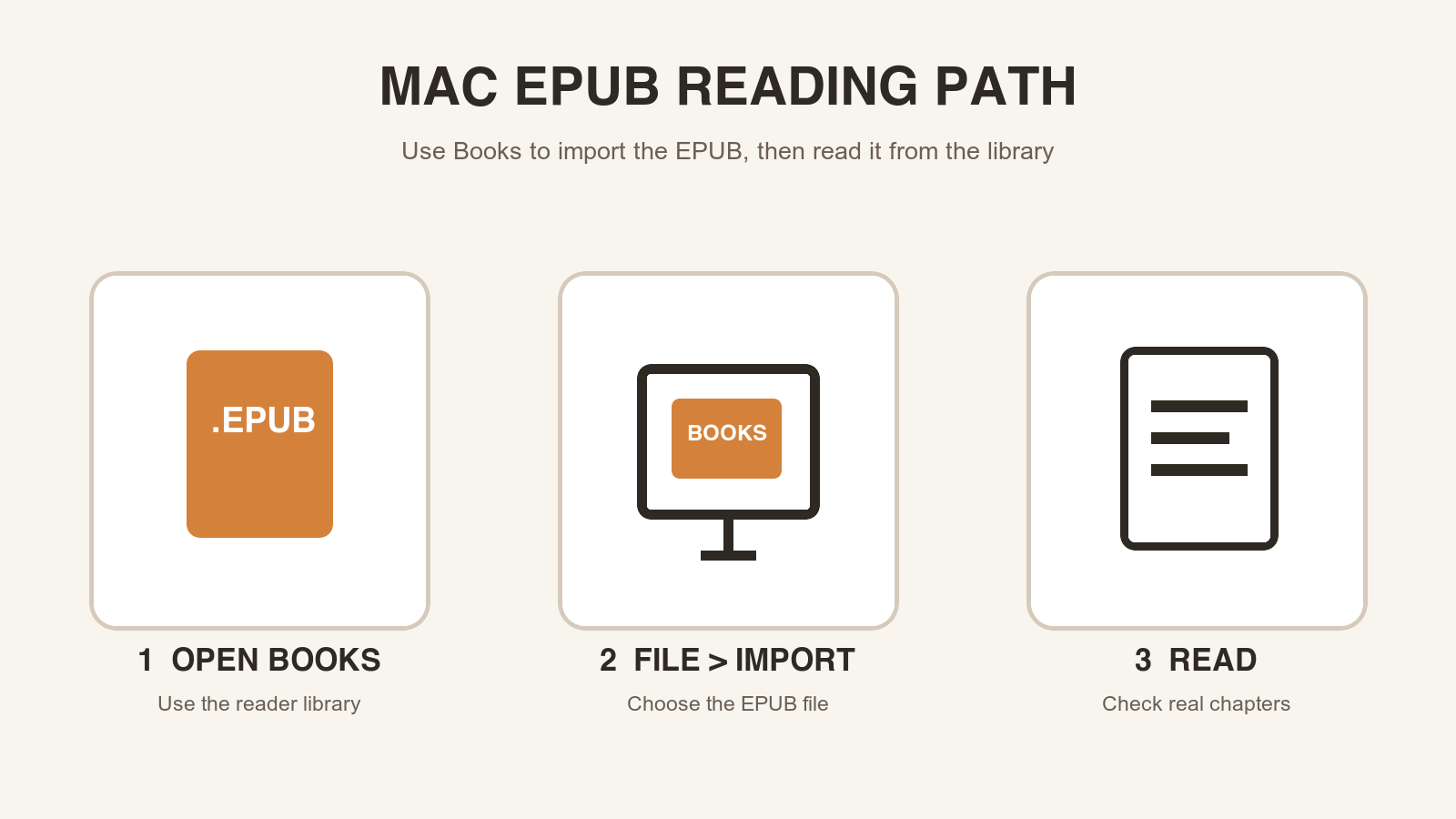
- Open Calibre and add the .epub file to the library.
- Select the new book, then choose View to open the E-book viewer.
- Use the table of contents to jump to a later chapter.
- Read a long paragraph and inspect one page with an image, caption, or note.
Use Windows reading time to validate the conversion
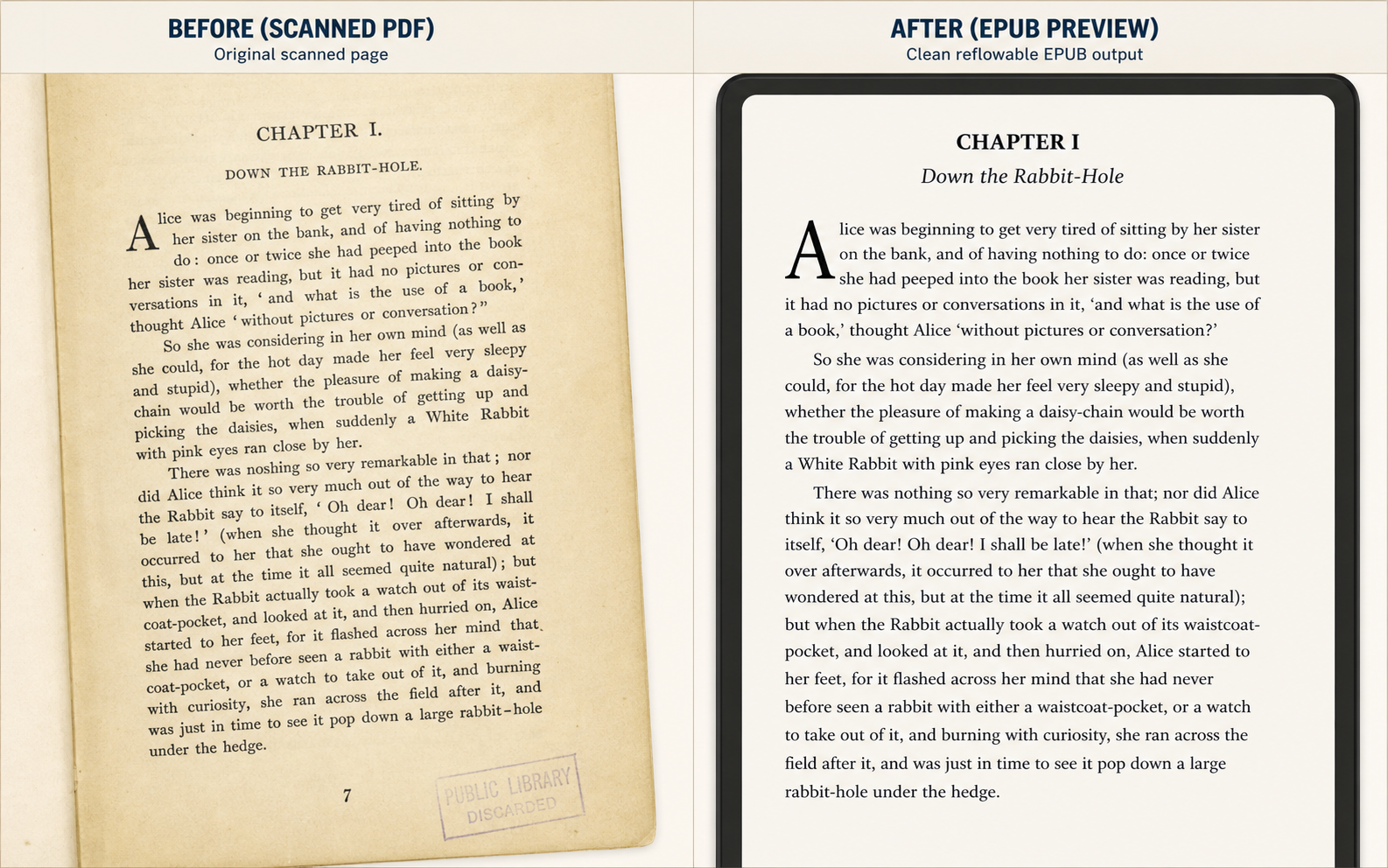
A PDF-to-EPUB conversion is successful when the output supports the reading task that the PDF made awkward. Check whether the title and chapter structure are coherent, whether paragraphs wrap naturally, and whether a later page has the same logical order as the source. This is especially important with scans, columns, running headers, footnotes, and page numbers.
For a clean prose book, a short reader check should be uneventful: headings lead into their paragraphs, chapter links work, and line breaks do not interrupt normal reading. For a table-heavy report or an academic PDF, a reader may reveal that fixed page layout carries meaning. Keep the PDF as the reference in that case instead of forcing every page into a reflowed book.
PDF to EPUB Converter is built around this decision. Generate the limited preview first, identify layout or OCR risk, and then open the finished EPUB in a reader such as Calibre. The preview tells you what to inspect; the reader tells you whether the resulting book is comfortable on the screen you actually use.
- Check that headings are not merged into body text.
- Check that page numbers did not become part of a paragraph.
- Check that images stay close to the text they explain.
- Check one late chapter, not only the opening sample.
Make the reader fit the way you read
Calibre's viewer documentation covers both paged and flow modes, navigation, bookmarks, search, highlighting, and reading preferences. Those controls are why a dedicated reader is more useful than an archive viewer: they let you test the EPUB under normal reading conditions instead of treating it as a technical artifact.
Use the default appearance for the first check, then adjust font size or page layout only after the text order is trustworthy. Enlarging type can make a cramped conversion feel more obvious; it cannot repair a source with broken columns or repeated headers. Separate readability settings from actual conversion defects so the next action is clear.
Stop changing readers when the source needs repair
Trying multiple readers can be useful for a compatibility question, but it is not a cure for a poor source file. If every reader shows the same broken paragraph order, incorrect chapter links, missing text from a scan, or page-number leaks, return to the conversion preview. That is the point where OCR, layout cleanup, or a text-first conversion path is more useful than another Windows app.
Use the reader to make one grounded decision: is this EPUB ready to read on Windows? If yes, keep it in the library and read it. If no, keep the original PDF, note the specific failure, and repair only the part that made the reading test fail.
Official sources
Reader behavior verified against publisher documentation
App interfaces can change. These direct sources are kept here so the reader path can be checked against the current product documentation.
-
The E-book viewer
Calibre
Documents the built-in viewer, the View action from a Calibre library, and Windows launch behavior.
-
EPUB 3.3
W3C
Defines EPUB as a packaged digital-publication format and describes reflowable reading.
Before you move the file
Preview the PDF-to-EPUB result first.
Inspect the first pages for OCR, headings, images, page-number leaks, and reading-order risk before downloading an EPUB to this reader.
Questions
FAQ
What is the easiest EPUB reader for Windows?
Calibre is a clear starting point for this workflow because it has a library and a built-in ebook viewer. Add the EPUB, select it, and use View to read the book.
Why will my EPUB not open in Windows?
First confirm that the downloaded file is actually a complete .epub file, then import it through the reader rather than renaming it or opening it as an archive. If the file is a store or library handoff format rather than EPUB, use the app specified by that provider.
Can Calibre read a converted PDF-to-EPUB file?
Yes. Its built-in viewer is suitable for the final reader check: inspect the table of contents, a long paragraph, and a later chapter to decide whether the reflowed EPUB reads correctly.
Does changing EPUB readers fix formatting?
Not usually. Reader settings can improve font size or page layout, but wrong reading order, OCR errors, and leaked page numbers are typically conversion or source-file problems.