
EPUB reader for Android
How to Read EPUB Files on Android with Google Play Books
On Android, an EPUB left in Downloads is not yet part of a reading library. Google Play Books provides a direct personal-file path: for the Files workflow, first turn on Enable PDF uploading in Play Books settings, then use Files to send the EPUB to Play Books or Upload to Play Books and find the result in Library > Uploads. Google also documents a Gmail EPUB path that does not need that setting.
Direct answer
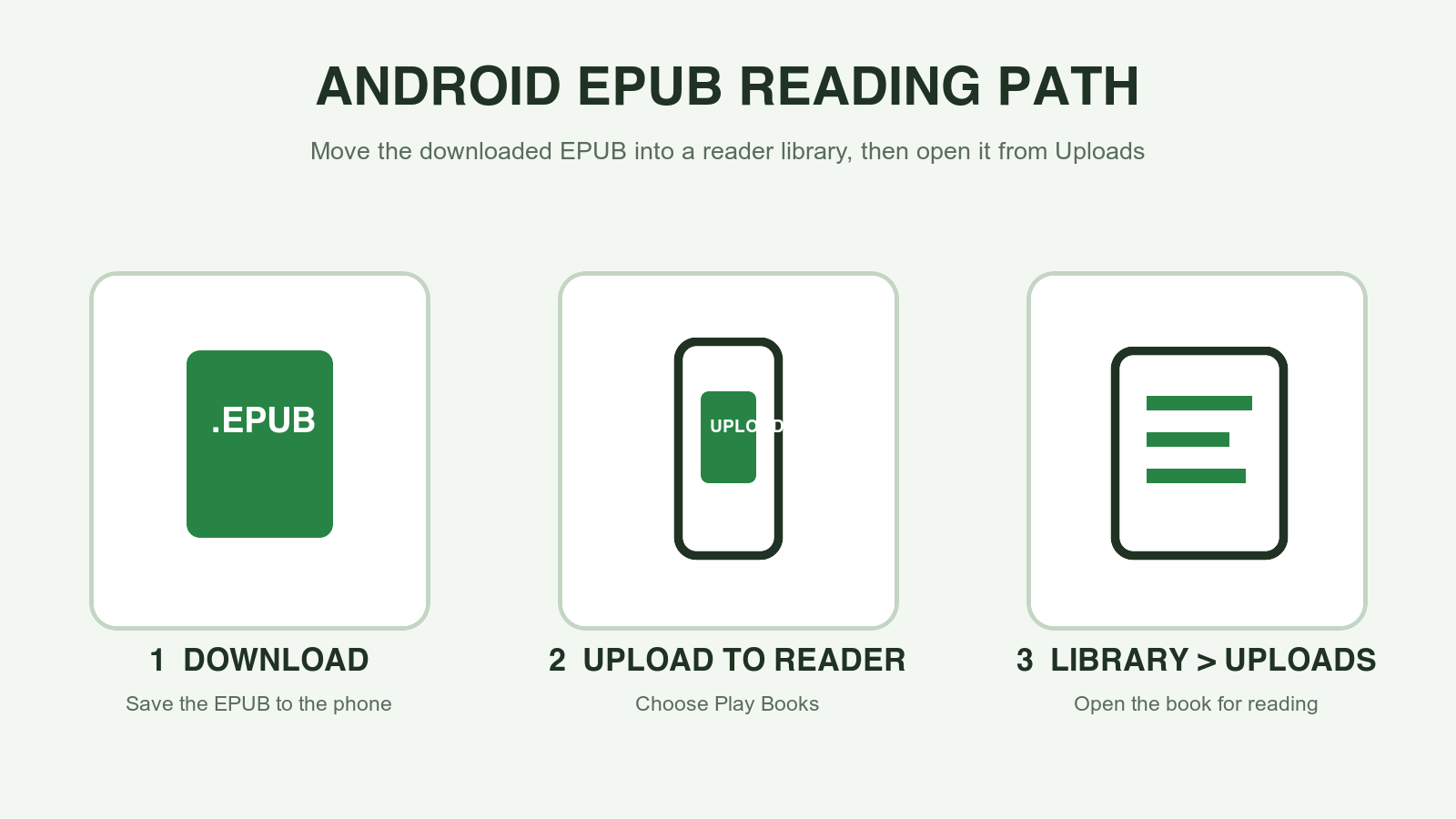
To read an EPUB on Android, follow Google Play Books' Files workflow: first turn on Enable PDF uploading in Play Books settings, then open the file in Files, choose Play Books or Upload to Play Books, and open it from Library > Uploads. For an EPUB sent through Gmail, Google says you can choose Upload to Play Books without changing that setting.
Move the EPUB from Downloads into a reader library
A downloaded EPUB is only a file until a reader imports it. Google Play Books gives that import a clear destination. In Google's current Files workflow, first open Play Books settings and turn on Enable PDF uploading. Then open the EPUB from the Android Files or Downloads app, choose Play Books or Upload to Play Books, and use Library > Uploads to find it again.
This distinction prevents a common loop where the book is repeatedly downloaded because it is visible in a browser but not in the reading app. The file does not need a new extension. It needs to be handed to the app that will organize and render the book.
It also fits a PDF-to-EPUB workflow well. Complete the conversion on the web, save the generated .epub to the phone, and move that one file into a reading library. The reader then handles the normal phone job: reflowed text, bookmarks, and returning to the book later.
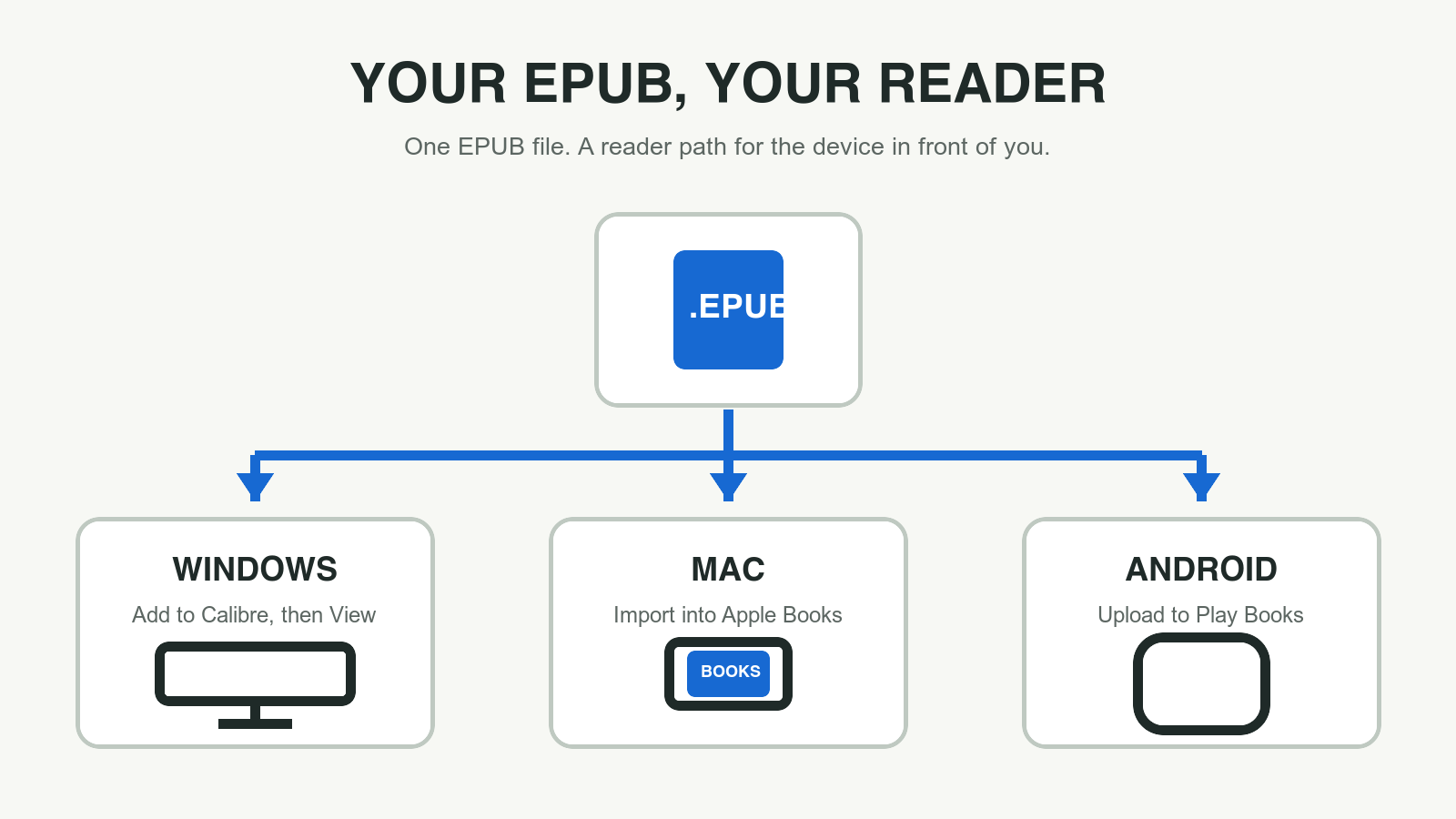
Upload a personal EPUB to Google Play Books
Google's current Android Files flow begins in Google Play Books: tap the profile picture, open Play Books settings, and turn on Enable PDF uploading. For an EPUB on the device, then open the Files or Downloads app, find the file, and choose the Play Books destination or Upload to Play Books. After that, look in Library > Uploads rather than searching the store catalogue.
Google also documents an email path: attach the EPUB in Gmail, open the attachment, and choose Upload to Play Books. This is useful when the file started on a desktop computer and the simplest transfer is an email attachment. Use your own allowed file and keep the original PDF separately when it is the layout reference.
Google distinguishes the Gmail alternative from the Files flow: its help page says an EPUB can be uploaded from email without changing the Enable PDF uploading setting. Use that email route when it is simpler than the on-device Files workflow, but do not assume the setting rule is the same for both routes.
- Open Google Play Books, tap your profile picture, open Play Books settings, and turn on Enable PDF uploading.
- Download the .epub file to your Android device.
- Open Files or Downloads, locate the EPUB, and choose Play Books or Upload to Play Books.
- Open Google Play Books, then go to Library > Uploads to read the book.
Test the reading flow where the text is smallest
A phone can reveal conversion faults that looked harmless on a wide desktop screen. Open a normal chapter, increase the font size to the size you would actually use, and verify that paragraph breaks remain natural. Then open a later chapter from the navigation and inspect one image, caption, note, or list.
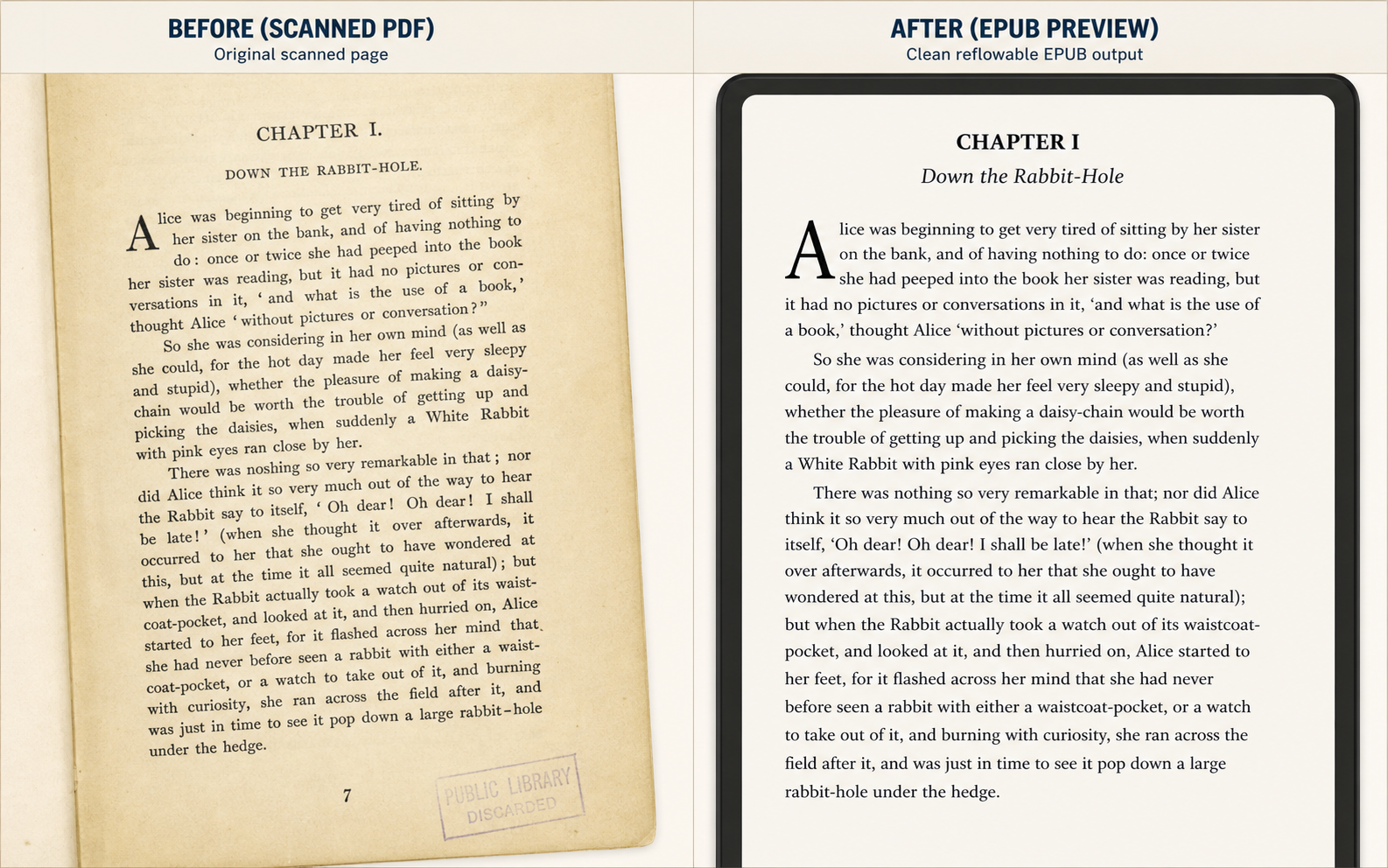
The question is not whether every source PDF page remains visually identical. EPUB is meant to adapt to the reading surface. The useful question is whether the order and meaning survive reflow: headings appear with the correct text, page numbers do not intrude into prose, and the navigation reaches the right chapter.
If a table or two-column research page cannot survive that change in screen width, keep the PDF for that reference task. EPUB is strongest when continuous text benefits from flexible typography. A conversion preview should make that limitation visible before you commit to a long reading session on the phone.
- Read one long paragraph at your preferred text size.
- Open a chapter from the table of contents or navigation menu.
- Inspect a page with an image, caption, table, or footnote.
- Keep fixed-layout material in PDF when reflow changes the meaning.
Use a reader workflow for EPUB, not a PDF workaround
An EPUB should enter a reader library as an EPUB. If the original file is still a PDF, do not expect a PDF viewer to create reflowed chapter navigation by itself. Convert the PDF only when you are allowed to do so and when a preview suggests that text order and structure can survive the change.
The split between format and reader makes troubleshooting faster. If the EPUB is visible in Play Books but has bad text order, return to the conversion. If the EPUB is correct but is still only in Downloads, repeat the Android upload step. One of those answers is actionable; randomly switching Android file managers is not.
Keep the phone reading flow simple and repeatable
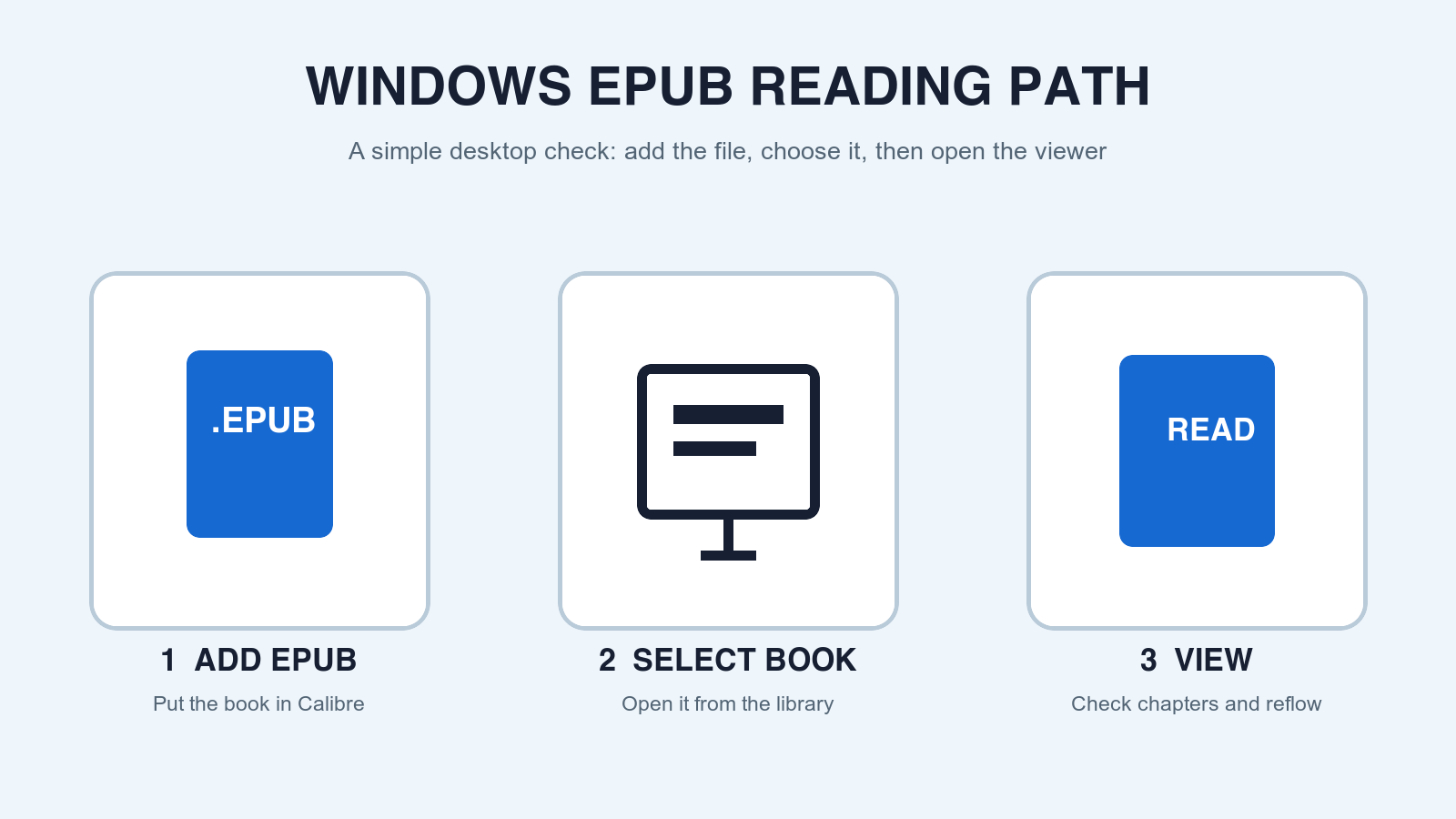
Use the same four actions every time: preview the conversion, download the EPUB, upload it to the reader, and check a real chapter. Repeating the exact handoff makes it easier to tell whether a failure is a download issue, an import issue, or a source-layout issue. It also avoids the trap of piling the same book into several unknown apps.
When you find a problem, describe it in reader terms. For example: the table of contents opens the wrong chapter, a page number appears in a sentence, or an image loses its caption. Those observations can be checked in the PDF-to-EPUB preview and corrected at the source, while the Play Books path remains a simple delivery step.
Official sources
Reader behavior verified against publisher documentation
App interfaces can change. These direct sources are kept here so the reader path can be checked against the current product documentation.
-
Upload PDF and EPUB files to your library
Google Play Help
Documents the Android Files workflow, Library > Uploads, and the Gmail EPUB alternative that does not need the Enable PDF uploading setting.
-
EPUB 3.3
W3C
Defines the EPUB digital-publication format and its reflowable reading model.
Before you move the file
Preview the PDF-to-EPUB result first.
Inspect the first pages for OCR, headings, images, page-number leaks, and reading-order risk before downloading an EPUB to this reader.
Questions
FAQ
Can Google Play Books read EPUB files on Android?
Yes. Google documents reading personal PDF and EPUB documents in Play Books after uploading them to the library.
How do I upload an EPUB to Google Play Books?
Download the EPUB, open it in Files or Downloads, and choose Play Books or Upload to Play Books. Then open Play Books and look under Library > Uploads.
Do I need to enable PDF uploading to upload an EPUB?
Google's current Files workflow lists Enable PDF uploading before you choose the downloaded file. Its Gmail EPUB alternative does not require that setting: Google says an EPUB can be uploaded from email without changing Play Books settings.
Why does an EPUB look different on Android than on a PDF page?
EPUB is designed for reflowed reading, so text adapts to the screen and font size. Check that headings, paragraphs, navigation, and key images retain their logical order; keep fixed-layout reference material as PDF when needed.